
LinkedIn saved posts are pieces of content, such as newsfeed updates, articles, videos, infographics, and images that you privately bookmark on the platform so you can view them later. This is a great way to save content you don’t want to lose while scrolling LinkedIn.
We’ll cover how to view saved posts LinkedIn, manage them properly, and much more.
Where Are Saved Posts on LinkedIn?
Many people ask how to see saved posts on LinkedIn, and rightly so, because the platform doesn’t promote this feature heavily. Your saved posts are located in the Saved items tab of your LinkedIn account.
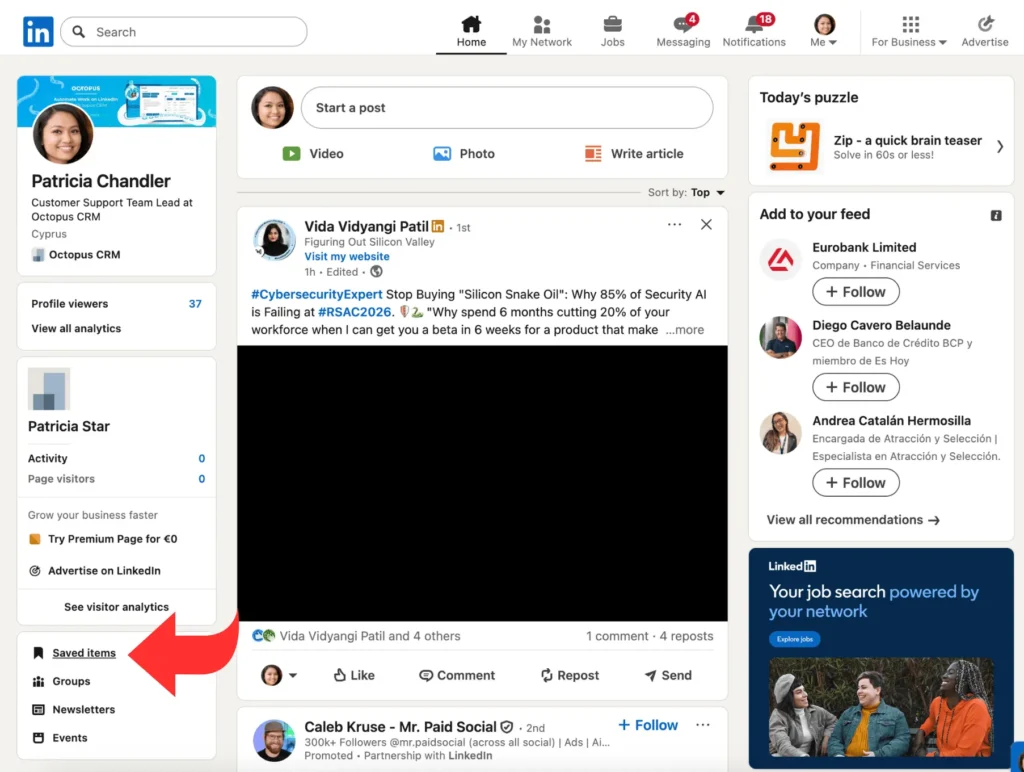
Saving something on the platforms immediately sends it to the Saved items section, which is your personal archive or folder that only you can see and access. This section is located on the left sidebar of your LinkedIn homepage. Click on the Saved items link, and it will take you to a new page where you’ll see everything you’ve saved over time.
How to Find Saved Posts on LinkedIn?
So, how to find saved posts on LinkedIn so you can review, manage, or use your bookmarked items? You can access your saved posts in Saved items, which is a linked menu on your homepage.
The process to find LinkedIn posts that you saved is a little different on a mobile and a desktop, but the location is the same, i.e., your Saved items menu.
You can find your saved posts in the Saved items menu on the homepage once you log into your account. It is positioned among other menus like groups, newsletters, and events on the left side of the homepage. Clicking on it will display a new page where you’ll see two options on the left sidebar: My jobs and Saved posts and articles. Click on the latter to access your saved items.
On the saved content page, you can scroll, read, or unsave anything with a single click. You can even get an embed link for your saved items to put on your website or anywhere else.
Where to Find Saved Posts on LinkedIn Mobile?
The steps of how to access saved posts on LinkedIn mobile are as easy as they were for desktop. Tap your profile image on the LinkedIn mobile app and select Saved posts from the dropdown menu. There you have all your saved items archived for you in a personal folder.
The only difference is that the menu where your bookmarked content is saved is named as Saved posts instead of Saved items, which was the case with the desktop version.
How to Find Saved Posts on LinkedIn Desktop?
View saved posts on LinkedIn while using a desktop is simple via the Saved items tab.
Here are the detailed steps to access your bookmarked items on LinkedIn using a desktop:
- Open the LinkedIn website;
- Log in to your account and you’ll land on the homepage;
- On the left sidebar, locate the clickable menu called Saved items and click on it;
- A new page will open where you’ll see a menu named Saved posts and articles;
- Just click on the Saved posts and articles menu to find your saved posts.
How to Save a Post on LinkedIn
Every piece of content on LinkedIn has three small dots (…) at the top right side of that post. When you find a post that you’d like to save, just click or tap on those three dots and then choose Save from the dropdown menu.
That’s it. You just saved that post to your private Saved items folder on LinkedIn. You can access this saved post later, unless the author deletes it or changes its privacy settings. You can save as many items as you want to your private LinkedIn archive.
Why Save Posts on LinkedIn?
There are several reasons why you might want to save posts on LinkedIn. This feature can help you keep track of job updates, bookmark content ideas for the future, return to posts from leads, or save thought-provoking articles.
Using saved posts on LinkedIn is similar to bookmarking a webpage or highlighting a passage in a book. You want to revisit that piece of content later because you’re equipped with something more urgent or important right now.
Instead of scrolling endlessly trying to find that one post you half-remember, you have a curated folder of the best content you have already vetted. It saves you time and consolidates your most valuable material in one place.
How to Manage Your Saved Posts on LinkedIn
Managing your LinkedIn saved posts is as easy as saving an item. Head over to your Saved items page following the steps already explained above. On this page, you can view all your saved items with the latest one at the top and the oldest one at the bottom.
Click on Read more… to open a saved post. You can now read the post and leave comments or reactions. To remove a saved item from your bookmark, click on the three dots (…) at the top right side of the post and choose Unsave.
Try regularly review your saved posts on LinkedIn and remove anything that’s no longer useful or relevant. This will help keep your archive clean, organized, and less cluttered.
LinkedIn Saved Posts Value
LinkedIn saved posts are often underrated. The reality is that this feature is valuable as it helps you organize insights, track conversations, and revisit important updates or articles whenever you want. It gives you a private folder to collect important material without distraction.
With Octopus CRM LinkedIn automation tool you can collect all users and commenters from your saved posts and add them to your personalized LinkedIn outreach campaigns.
Once you’ve learned how to see saved posts on LinkedIn, finding and managing them becomes easy. Use the Saved items section to stay in control of your saved content and make it part of your LinkedIn workflow.