
You want to know how to hide your LinkedIn profile because you want to step back from the digital spotlight. You don’t need to delete your account because there’s a provisional way to hide profile on LinkedIn.
We’ll list down the steps to hide your LinkedIn profile and explain why and when to use this option.
How to Hide Your LinkedIn Profile Without Deleting It?
Here’s how to hide your LinkedIn profile from public view temporarily without deleting it:
- Log in to your LinkedIn account;
- On the homepage, click the Me icon at the top right side of the screen;
- Choose Settings & Privacy;
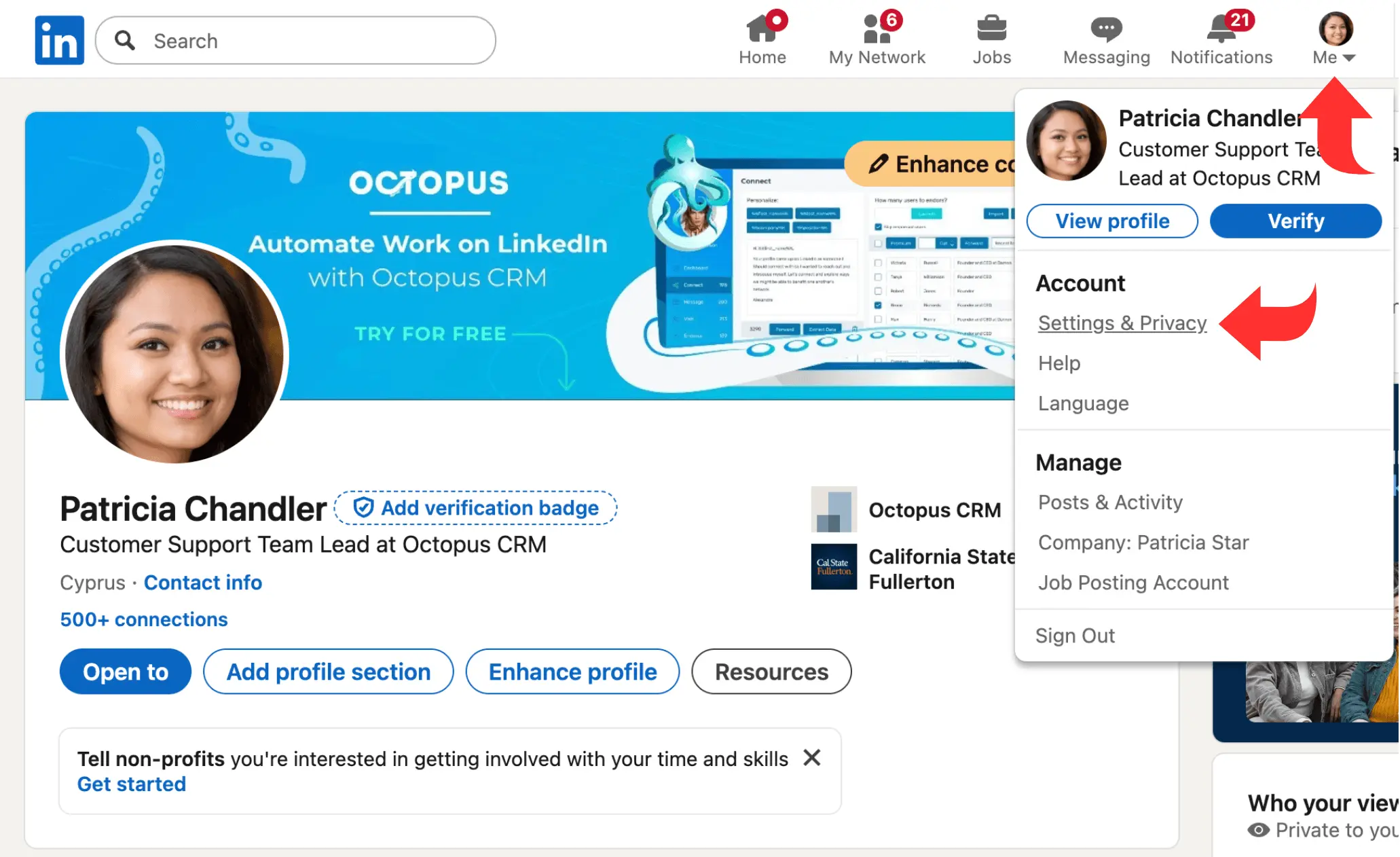
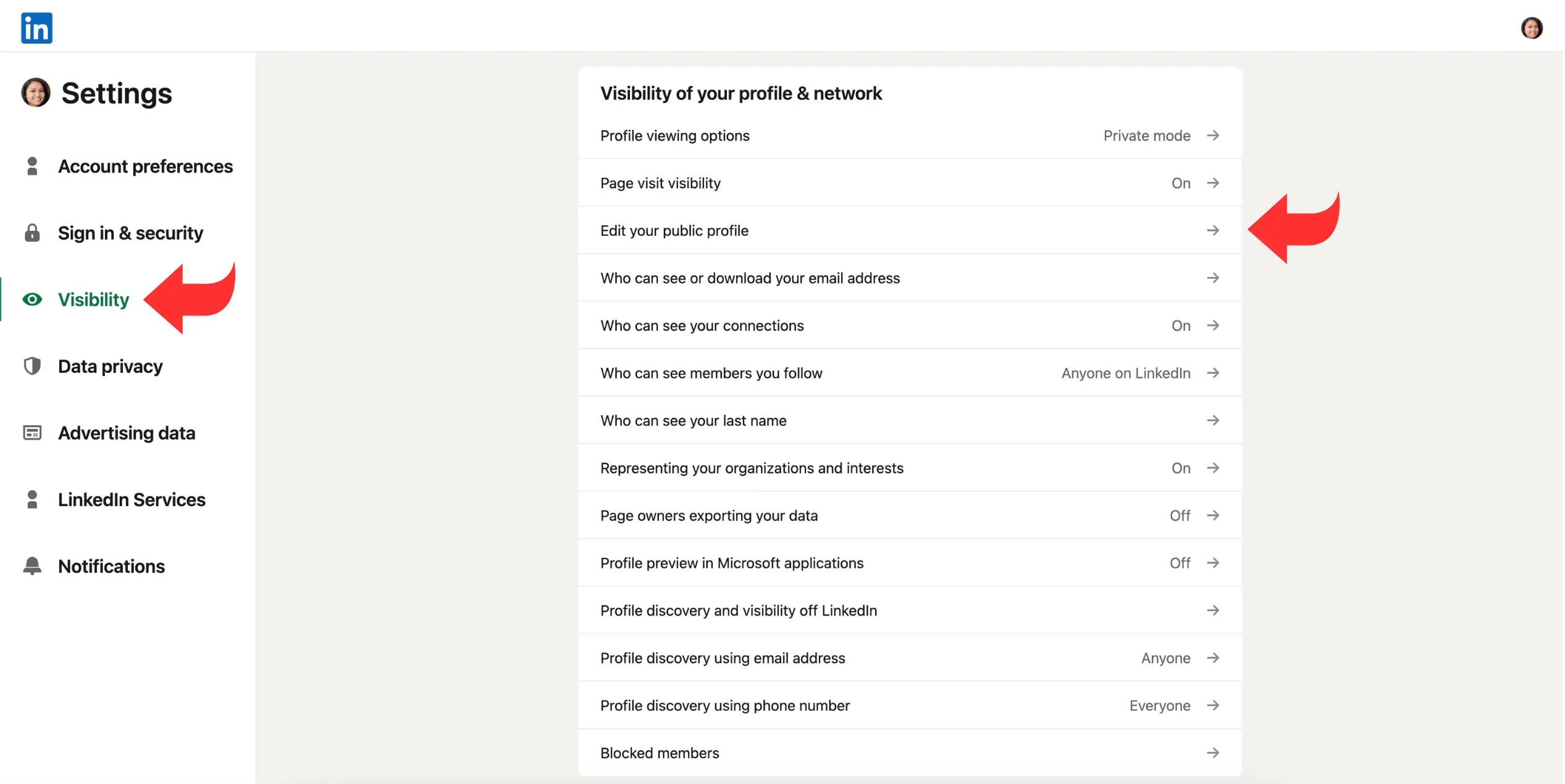
- On the new page, select Visibility from the left sidebar;
- Click on the Edit your public profile tab;
- Toggle OFF Your profile’s public visibility on the right pane.
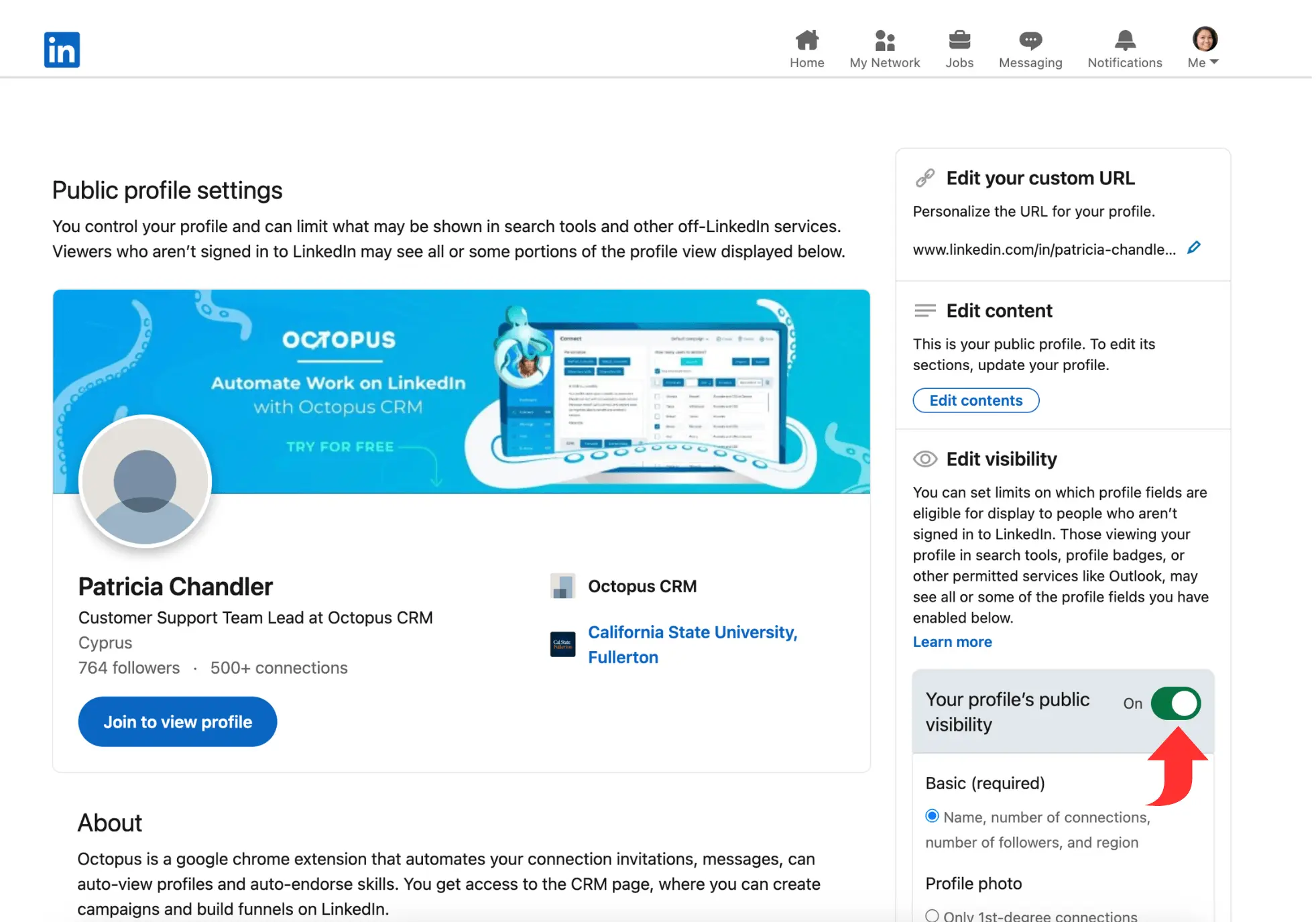
These steps will make your profile invisible to the general public (non-LinkedIn members) or people not logged into their LinkedIn accounts.
However, even when you hide LinkedIn profile, you’ll still be able to use your account and browse the platform without any interruptions. Plus, you can follow the same steps and toggle ON your public profile visibility anytime you want.
Why Should You Hide Your LinkedIn Profile?
Hiding your profile allows you to take a break, avoid unwanted attention, update your information privately, or explore opportunities without tipping off your current employer.
Knowing how to hide LinkedIn profile also helps protect your privacy.
Many people use this feature when they want to pause their job search and don’t want recruiters to reach out.
Other users hide their profiles when they’re in the middle of negotiations, career changes, or weighing multiple job offers. This step helps prevent possible conflicts.
How to Manage Your LinkedIn Connections While Your Profile Is Hidden
When you hide your LinkedIn profile, it doesn’t mean you won’t be able to manage your connections. You can use LinkedIn as you normally would. Hiding your profile doesn’t remove your existing connections, and you’ll be able to send and accept new connection invites.
You can still engage with the posts from other users, publish your own posts, and send and receive messages. As for your first-degree contacts, they’ll still see your profile and updates without any changes.
How to Hide LinkedIn Profile From Google Search
When you hide your LinkedIn profile from public view, it also makes it invisible to Google and Bing search.
Here’s a quick rundown of the steps:
- Choose the Me icon from the homepage;
- Click on Settings & Privacy and then choose Visibility from the left side;
- Click on Edit your public profile and turn OFF your profile’s public visibility.
These steps will hide your profile from Google and other search engines. It can take some days for your profile to disappear from search engine results, though.
This is a straightforward method to hide profile from public while keeping your account active. It prevents unwanted potential employers and random people from finding your LinkedIn profile through a simple search.
How to Hide LinkedIn Profile From Current Employer
How to hide LinkedIn profile from certain contacts, such as your current employer during an active job search? LinkedIn doesn’t allow you to hide your profile from specific users. You can only hide your profile from people outside LinkedIn.
There are ways, however, to restrict your privacy settings so your current employer cannot see much of your information. For example, you can switch off profile update notifications and limit who can view your connections.
To prevent sending profile update information to your connections, go to Settings & Privacy from the Me icon, choose Visibility, and then turn off Share job changes, education changes, and work anniversaries from profile.
To turn off the visibility of your connections list, head over to Settings & Privacy, Select Visibility, and then click on Who can see your connections. Now, toggle OFF Connection visibility, and no one will be able to see your existing connections except you. However, your 1st-degree connections can see only your mutual contacts and people who have endorsed you.
If you’re reaching out to recruiters, use LinkedIn private messages instead of public comments on the platform, as the latter can draw the attention of your current employer.
What Is the Difference Between Hiding a LinkedIn Profile and LinkedIn Private Mode?
Hiding your LinkedIn profile makes it invisible to people outside LinkedIn, while Private Mode on LinkedIn is a feature that allows you to view other users’ profiles without them knowing your identity.
Both options control your visibility, but they serve different purposes. We’ve explained everything about hiding your LinkedIn profile above.
The LinkedIn Private Mode feature hides your name and other profile information when you visit another person’s profile. Your own profile remains fully visible to your connections and the public, depending on your other settings.
Conclusion
Learning how to hide LinkedIn profile gives you control over your visibility and privacy.
Follow the steps explained above to hide your profile from public view and search engines like Google. You can limit what your existing connections can see, but there’s no option to fully hide your profile from them.
Review your profile settings periodically to make sure your visibility aligns with your professional goals.